Question:I’ve been trying to create a transparent satellite icon to use in my Milestones roadmap, but I keep running into an issue, every version I create ends up with a white block behind it when II copy it to PowerPoint. Since my roadmap uses colored swimlanes, the white box really stands out and breaks the visual formatting. |
Answer:
A clipping symbol is used to overcome the problem of some bitmap symbols having a white rectangular background when printed. Only use a clipping symbol for non-rectangular bitmap symbols. Also, as clipping symbols do not work with metafiles, don't use a clipping symbol if the schedule will be copied to another application as a metafile. (OK for bitmaps)
Example of white rectangular background issue:
In this example, a bitmap is used as a symbol. This is how it appears on the screen:
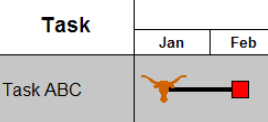
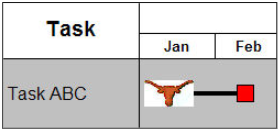
However, when printed or pasted into PowerPoint, the bitmap's rectangular background appears, as shown below. By creating a clipping symbol, the rectangular background coloring is removed from the printed schedule.
Create a clipping symbol using Milestones symbol maker:
-
Be sure that the bitmap symbol to be clipped has been added to the Toolbox.
-
Choose Tools | Other Tools |
 Create or Edit Custom Symbol.
 -
Within the Symbol Maker, choose File | Choose Symbol Overlay.
-
Next to Toolbox Symbol, choose the bitmap symbol to be clipped and then choose Select.
-
The bitmap symbol appears (it is not selectable). The purpose now is to trace around the image, cutting away the background so that it does not appear on the printed schedule.
-
Click on the Symbol Maker's add tool
 .
. -
Using the left mouse button, click on a grid point close to the edge of the image. Continue to click on other grid points while tracing around the image. Finish by clicking on the beginning grid point.
-
Once the image has been completely, choose File | Save to Symbol File. Name the symbol and Save.
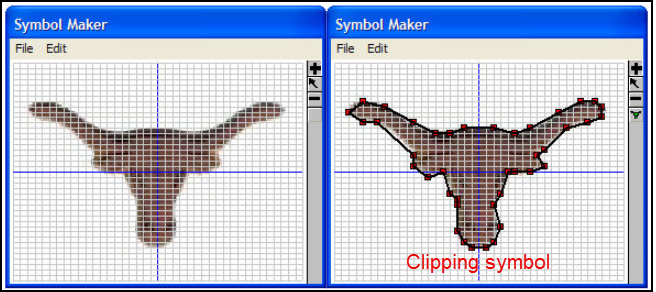
Clipping symbol example
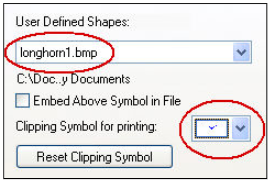
As shown below, longhorn1.bmp is the original bitmap symbol whose surrounding background was printing as a white rectangle. To remove this white background, the bitmap's image was used as a symbol overlay in the Symbol Maker. After clipping around it and naming the new symbol, that new symbol was added to the Toolbox and selected as the Clipping Symbol for printing. Thus, the longhorn1.bmp symbol will print without the white background because the clipping symbol prevents it.