Insert a baseline

Question:     

I have built my schedule and would now like to set this as my schedule's baseline.  How do I do this so that I can show my changes?  


Answer:


Add a baseline to your schedule:

  1. On the Insert tab, Baseline, DataGraph, ValueSet section, click Insert or remove a Baseline | Insert a Baseline

  2. Follow the prompts to set up the baseline symbology.

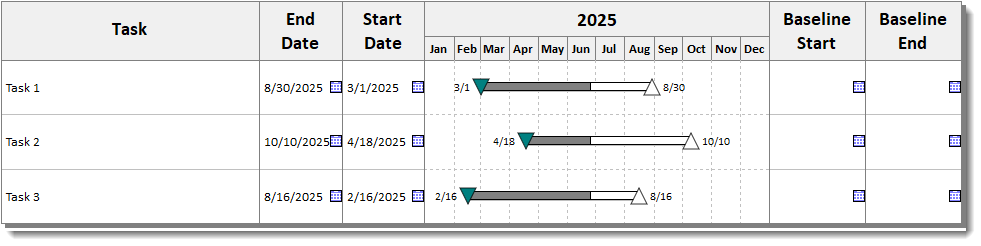
  3. Start with a schedule like this:

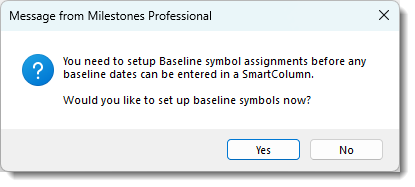
You will get a message from Milestones:  (click yes)

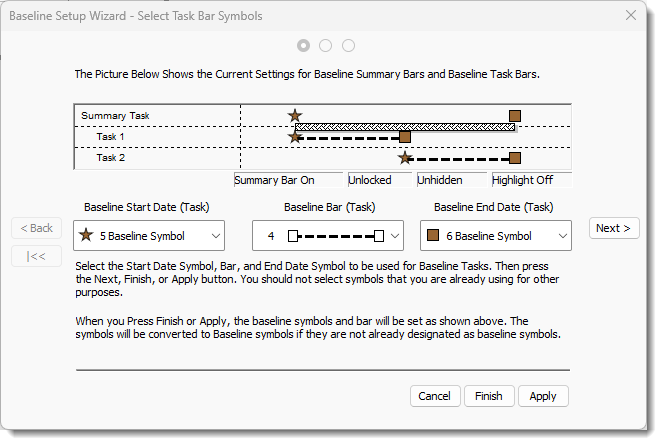
Pick baseline symbols for Baseline Start and Baseline Finish (if there are none they need to be set up - see below)

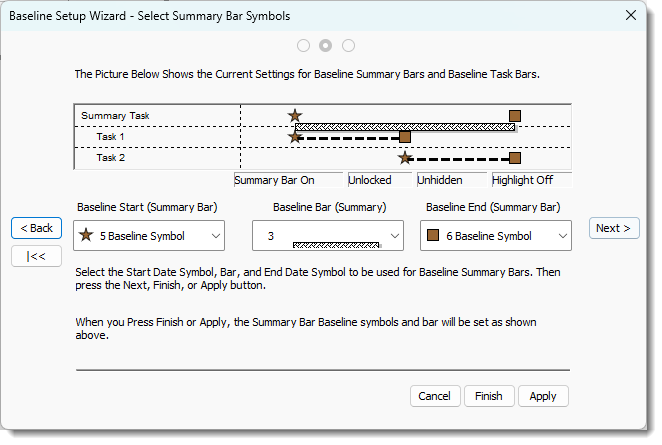
Next, select the summary symbology for the baseline:

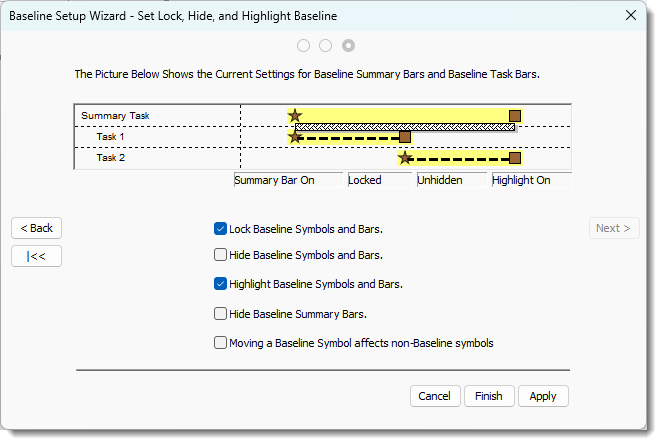
Finally, choose to Highlight and lock the baseline:

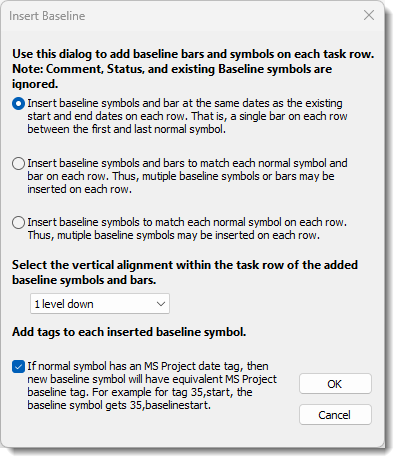
After clicking Finish, you will see this dialog box with additional options which offer a selection of level for the newly inserted baseline, along with an option to tag inserted symbols.

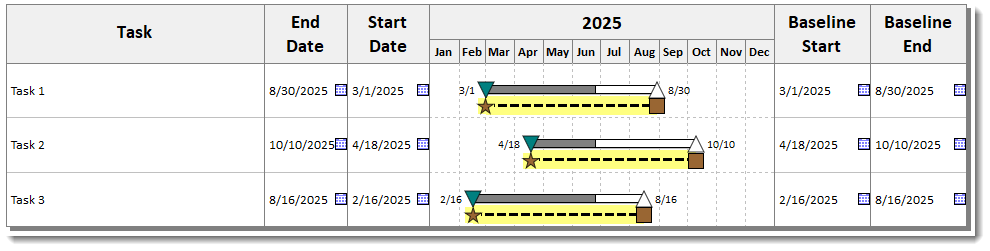
You will see something like this:


Set up baseline symbology (If no baseline symbols in the toolbox)

  1. Double-click an unused symbol in your toolbox.  This will be used for baseline start.

  2. Under Standard Shapes: choose #28 (blank or null symbol)

  3. Baseline Symbol.

  4. On the Text and Date Properties tab,  Hide for Date Placement and   Hide for Text Placement.

  5. Double-click another unused symbol in your toolbox.  This will be for baseline finish.

  6. Under Standard Shapes: choose #28 (blank or null symbol)

  7. Baseline Symbol.

  8. On the Text and Date Properties tab, Hide for Date Placement and   Hide for Text Placement.

  9. Double-click an unused bar in your toolbox.  This will be the baseline bar.  A good choice for baseline bar is #10.


Related topics

Remove all baseline or status symbols

Show baseline dates without showing baseline symbols   

Baseline symbols

Hide baseline summary bars

Calculate BCWS using baseline duration

Show a slip to baseline with a milestone symbol

Add baseline when importing from Excel


Applies to Milestones Professional:      2019        2021        2023        2025


The fast easy way to schedule your projects:  Milestones Software by KIDASA Software, Inc. www.kidasa.com

Copyright © 2025 KIDASA Software, Inc. All rights reserved.