Change the date range for a single page on the schedule

Question:     

After inserting the second page, how do you change the date headings on it without changing the first page?


Answer:

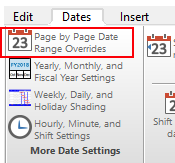
  1. On the Dates tab choose Page by Page Date Range Overrides.

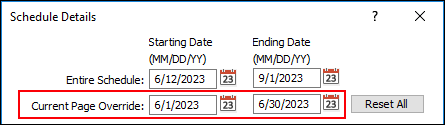
  2. The Schedule Details dialog box is displayed.  In the example below, the current page will display only the month of June.


Related topics

Change the color and shape of the roll-up triangle

Change bar shapes on the schedule

Change a symbol's color

Change date range in Viewer

Change the start and end dates for a schedule


Applies to Milestones Professional:      2019        2021        2023        2025


The fast easy way to schedule your projects:  Milestones Software by KIDASA Software, Inc. www.kidasa.com

Copyright © 2025 KIDASA Software, Inc. All rights reserved.