Question:I want to use a table of unique IDs that I have in Excel to update the unique IDs on my Milestones schedule. How do I do this? |
Answer:
- Go to this page on the KIDASA web site: Excel Examples.
- Click to expand Excel VBA Example #6.
- Scroll down until you see the link for MilestonesOLEExcelExample6.zip. Click the link you see and download.
- Navigate to the download location (usually your Downloads folder.)
- Expand the zip file to a folder.
- In the folder, right-click MilestonesOLEExcelExample6.xls and choose Properties.
- On the General tab, near the bottom,
.bmp) Unblock.
Unblock. - Double-click to open the MilestonesOLEExcelExample6.xls file.
- Click the Enable Editing button.
- Right click the Excel toolbar and choose Customize Ribbon.
- On the right site, Developer tab. This will turn on the Developer tab, necessary for VBA.
- On the Developer tab, click Macros to show a list of available macros.
- Click TagMilestonesSchedule to run the macro. You will be prompted to specify the Milestones file which is to be updated.
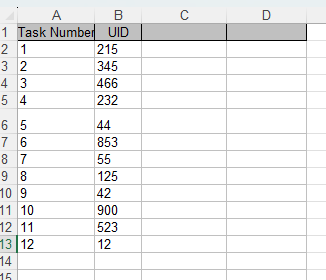
Here's what the sample excel file looks like. It can easily be edited with the Unique IDs to be used.
View a movie on this topic.